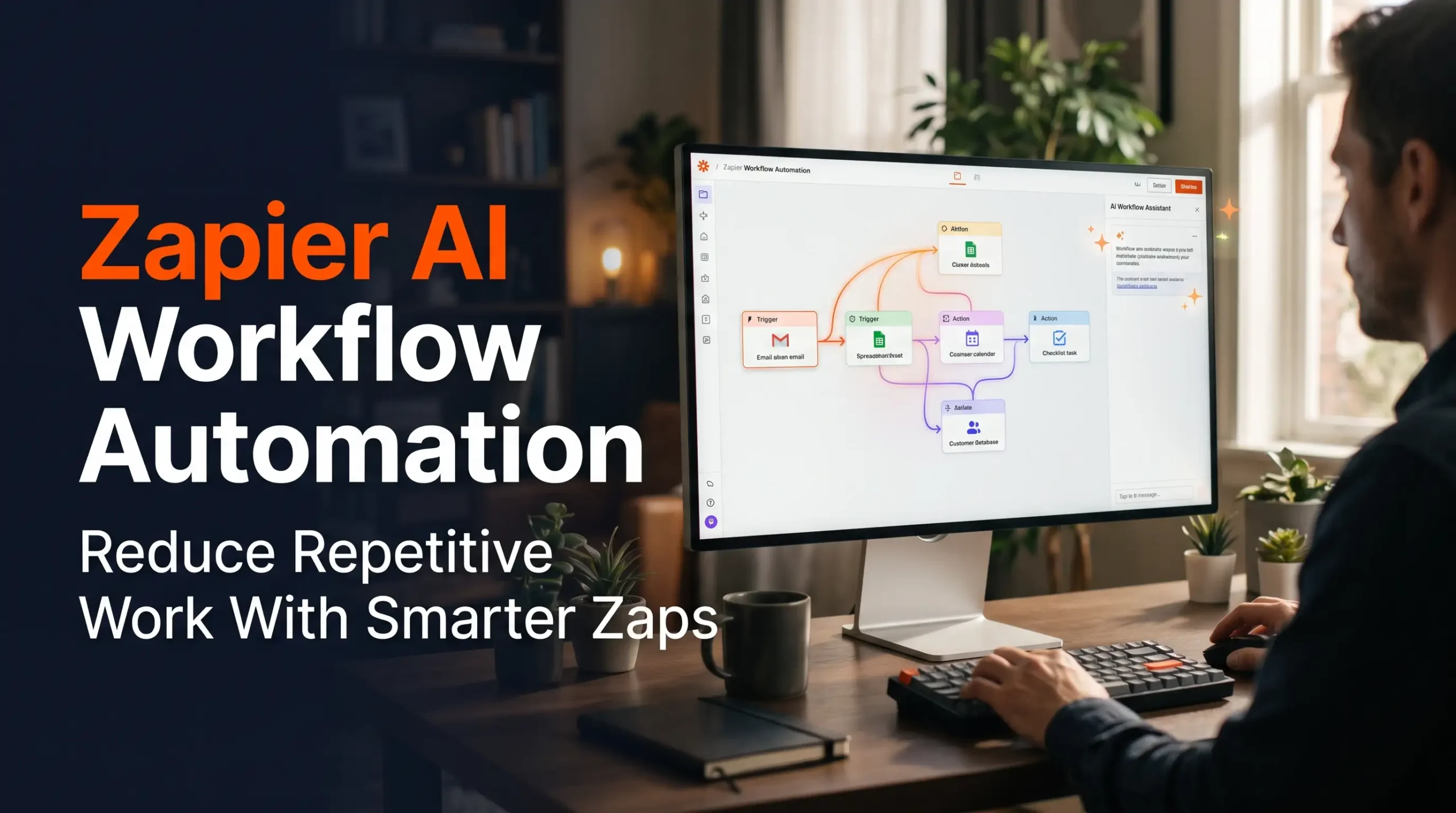
Copying details between apps, sorting requests, and drafting routine replies can eat up hours across a workweek. Zapier AI workflow automation connects those tasks so apps move information for you, while AI can help make sense of text along the way.
A Zap starts when an event happens in one app, then carries out one or more actions. An AI step can summarize a message, pull out key details, assign a category, or draft text before the workflow sends that result elsewhere. Available apps, AI tools, and plan limits can change, so check Zapier’s current product details before you build.
The best results come from a clear process and a small, well-defined AI task. You’ll see where AI helps, how to plan and test a workflow, and what safeguards keep it useful and safe.
Also Read: Notion AI vs Traditional Notion: Is the Upgrade Worth It?
What Zapier AI workflow automation can do

Traditional app automation moves information and follows set rules. AI-assisted automation adds a step that can interpret or create text, which helps when each message or form response is worded differently. AI works best as one part of a process, not as a replacement for every rule or human decision.
How a Zap connects apps and actions
A Zap has a trigger and one or more actions. The trigger is an event, such as a new form response; the actions are what happen next, such as adding a spreadsheet row and notifying a team channel. Zapier explains this trigger-and-action structure in its Help Center.
As data moves through the workflow, you can map fields from one step into another. For example, a form’s name and email can fill matching fields in a new contact record. The workflow runs the same path each time the trigger occurs, unless you add rules or other steps.
Where AI fits into an automated workflow
AI can handle language-heavy tasks, such as summarizing a long message, extracting a date or product name, labeling a request, or drafting a reply. Standard actions then move the result into a CRM, project tool, email app, or team queue. This pairing lets each step do what it handles well.
Keep the AI task narrow. “Summarize this support request in two sentences and choose one topic from this list” is easier to check than a broad request to decide what the company should do.
When AI is useful—and when rules are enough
Use ordinary filters or conditions when the logic is exact and predictable. If a form field always contains “Billing,” a rule can route it to the billing queue without asking AI to interpret it.
AI can help when wording varies or the meaning matters. A customer might describe a refund request as “I was charged twice” or “There are two payments on my statement.” AI may recognize the shared topic, but a person should review labels that affect urgent or sensitive cases.
Also Read: Microsoft Planner vs Project: Choose the Right Tool for Your Team
Design a Zapier AI Workflow Automation before you build it

Start with a frequent bottleneck, not with a tool you’re eager to try. Pick a task that has a clear beginning and a result you can check. Before choosing apps, define what a successful run looks like.
Map the task from trigger to outcome
Write down what starts the process, what information it needs, what decisions happen, and where the result should go. Note how someone knows the task is complete, too. A quick sketch can expose duplicate checks or steps that don’t add value.
For a support request, the trigger might be a new ticket. The needed information could include the message, customer, and ticket link; the outcome might be a topic label and a ticket sent to the right queue.
Decide what AI should handle
Give AI a bounded task, such as turning an email into a short summary or choosing a topic from approved labels. State what information it can use and what output you expect. If your next step needs separate fields, ask for a consistent structure rather than a free-form paragraph.
Also define what should happen when details are missing or unclear. The workflow might flag the item for review instead of guessing. This makes uncertainty visible before it affects a customer or team record.
Set boundaries for human review
Keep a person involved when a decision affects money, a sensitive customer issue, compliance, or another high-impact outcome. AI can prepare a draft or suggest a category, but it shouldn’t make a consequential choice on its own. Add an approval step before sending a customer-facing reply or taking an action that’s hard to undo.
Build and test a Zapier AI Workflow Automation

Build the workflow around the process you mapped, then test each step before turning it on. Zapier’s features, setup options, and plan limits can change, so check its current documentation for instructions that match your account.
Choose the trigger and connect the right apps
Select the event that should start the Zap, then connect the apps needed for the later steps. Map only the fields the workflow needs. A sample form submission or ticket can help you see how the data will pass between steps.
Check permissions before connecting an account. Use access that fits the job, and make sure the test record reflects the kind of input the live workflow will receive.
Add an AI step with clear instructions
Give the AI step useful context, a direct task, and a clear output format. For example, it could summarize a support message in two sentences and select one topic from a fixed set of labels. Then map the summary and label into the next app or team queue.
Review the output before using it in a live action. If the AI response needs cleanup or varies too much, adjust the instructions or add a review step before expanding the workflow.
Test edge cases and monitor results
Test a typical input, an incomplete one, a long message, and an ambiguous request. Check both the AI’s result and the action that follows it. A useful summary won’t help if it lands in the wrong record or queue.
After launch, review available task history or run logs when something fails. Use what you find to refine field mapping, instructions, or fallback steps. Retest after making changes.
Put Zapier AI Workflow Automation to work in everyday processes
The examples below are patterns you can adapt, not ready-made recipes. Confirm that the apps and features you need are available for your account, and keep a person involved where a wrong result could cause harm.
Turn form submissions into organized lead records
A new form response can trigger a Zap that asks AI to summarize the prospect’s needs or extract key details. The workflow can then create or update a CRM record and alert the right team. Keep qualification rules explicit, and review AI-generated labels before they affect how a lead is handled.
Sort incoming support requests for faster follow-up
When a support email or ticket arrives, AI can create a short summary and suggest a category. The Zap can send the request to a matching queue, where a support agent reviews it. Flag urgent, sensitive, or unclear cases for human attention rather than relying on an AI label alone.
Convert meeting notes into follow-up tasks
A workflow can turn meeting notes into a summary, decisions, and suggested action items, then send them to a project tool for review. Check names, deadlines, and commitments before creating or sharing tasks. A quick approval step can catch errors that would otherwise become team assignments.
Keep workflows dependable, secure, and worth maintaining
AI can produce incomplete or incorrect results, and connected apps can change how they handle data. Treat your workflow as an ongoing process, not a one-time setup. Review its results and access as your tools, policies, and team needs change.
Protect data and review connected-app permissions
Give each connection access only to the apps and information it needs. Avoid sending sensitive details to an AI step unless your organization has approved that use. Zapier’s data privacy information explains its role in handling customer content and points to current privacy practices and controls.
Check the policies for the connected apps and AI services as well. Data handling, retention, and available settings can vary, so don’t assume one workflow’s controls apply to every service.
Add safeguards for errors and unexpected inputs
Use filters for known conditions, and add a fallback path when an AI result is missing or unclear. A notification or approval step can pause a consequential action until someone checks it. These controls help prevent a mistaken label or blank field from moving through the workflow unnoticed.
Measure whether the workflow improves the process
Set a baseline before launch. Track practical measures such as processing time, routing accuracy, corrections, and failed runs. If the workflow doesn’t improve the task or creates extra review work, revise it or keep that step manual.
Also Read: Free Productivity Tools A Practical Checklist for Choosing What Fits Your Workflow
Build a smaller, safer first Zap
Zapier AI workflow automation works best when it starts with a specific bottleneck, uses rules for predictable decisions, and reserves AI for tasks that involve varied language. Map the process, give AI one clear job, and test realistic inputs before the workflow handles live work. Protect sensitive data and keep people involved in consequential decisions.
Choose one recurring task this week and build the smallest Zap that can help. Review its first results, fix what doesn’t work, and expand only when the workflow proves dependable.
FAQS
Yes. Zapier is primarily a no-code workflow automation platform, but it now includes AI features such as AI by Zapier, Zapier Copilot, AI fields, and Zapier Agents. These tools can summarize content, classify data, draft text, make decisions, and automate actions across connected apps.
AI by Zapier can be previewed on the Free plan, but publishing a Zap that uses it generally requires a paid plan. On Free, the model defaults to Standard, while Advanced and Premium tiers are locked; pricing is based on the selected model tier and the number of tasks used per run
There is no single best AI automation platform for everyone. Zapier is best for fast no-code automation and broad app coverage, n8n is best for technical users who want more control and self-hosting, and Make is a strong visual option for complex multi-step workflows.
n8n can be better if you need self-hosting, advanced logic, custom code, and lower execution-based costs at scale. Zapier is often better for non-technical users because it is easier to set up, offers more than 9,000 managed integrations, and provides built-in governance features on higher plans.
Yes. Zapier offers a free plan with 100 tasks per month, unlimited Zaps, Tables, and Forms, two-step Zaps, and access to Zapier Copilot. It is suitable for testing simple automations, but paid plans are needed for higher task volumes and more advanced features.


