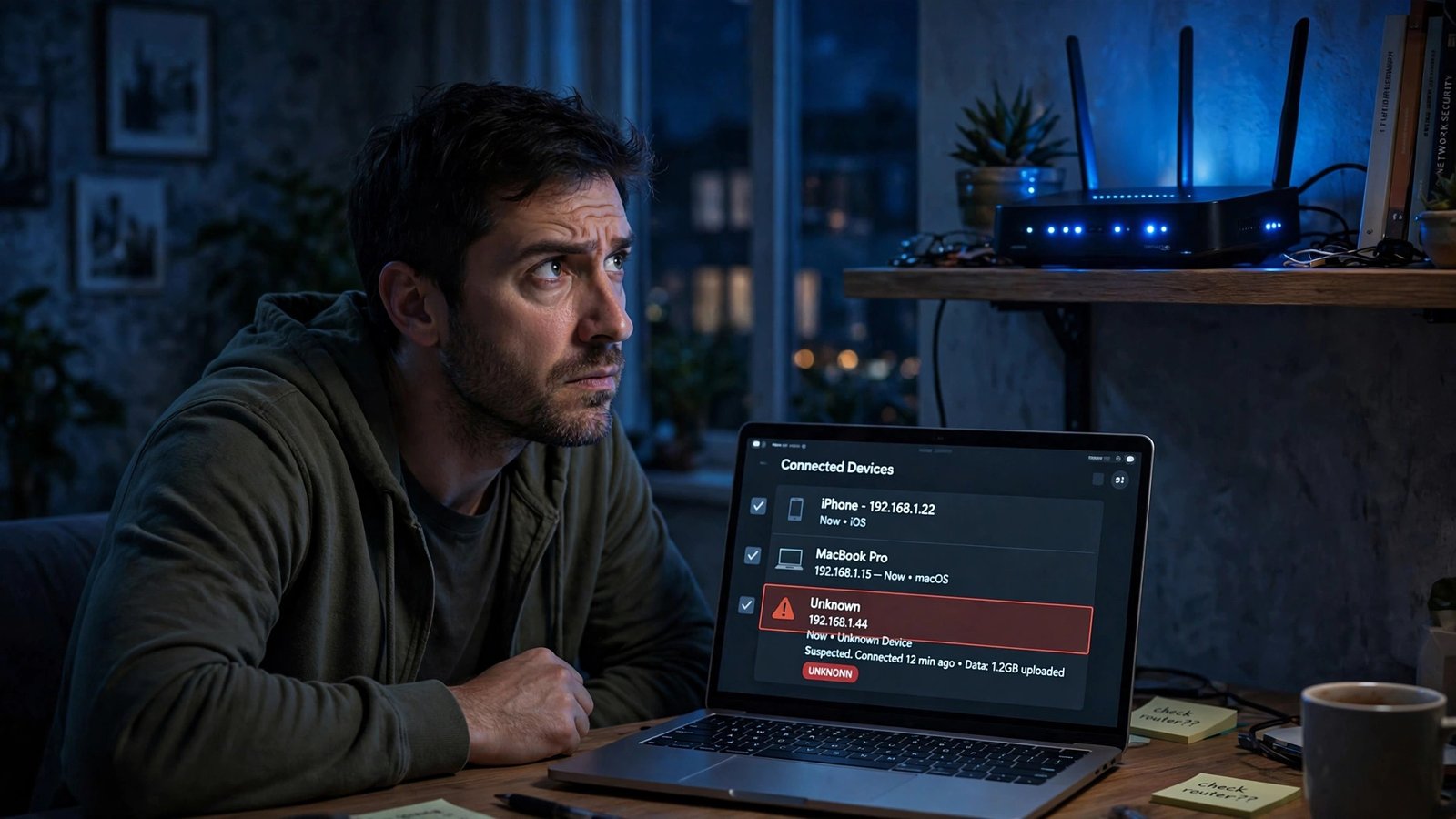
Your video call freezes at the same time every evening. The router lights blink away at 2 a.m. when everyone is asleep. Nothing you own should be doing that — so who is? This guide shows you how to tell if someone is using your WiFi, with exact checks, not guesswork.
Work through it in order. Most “intruders” turn out to be your own forgotten gadgets — covered honestly at the end. But if a stranger really is on your network, you will find them here, and the fix takes fifteen minutes. Same approach as our companion guide on how to check if your phone is hacked: real signs, exact checks, fixes in order.
Why a Stranger on Your WiFi Is Worse Than a Slower Connection
Someone stealing your WiFi is not just borrowing bandwidth. Anything they do on your connection appears to come from your home and your internet account — your IP address is the return address on everything they send.
The quieter risk is inside your home. A device on your WiFi sits on the same local network as your laptop, network storage, printer and cameras — devices that, on many home setups, trust each other far more than they should. A patient intruder can poke at shared folders and smart devices never meant to face a stranger.
7 Signs Someone Is Using Your WiFi
No single sign proves a freeloader. What matters is the pattern — several of these, starting together, with no innocent explanation. Signs suggest; the two checks after this list prove.
- Your internet slows down at predictable times. Evenings crawl even though nobody at home is streaming or downloading — someone else’s 4K habit fits that schedule better than your empty house does.
- The router is busy when the house is not. Activity lights flickering constantly at 3 a.m., or while everyone is on holiday, means data is moving for somebody.
- You hit data caps or see usage you cannot explain. Monthly usage climbing while your habits stay the same means something is consuming data on your account.
- Your provider’s app reports new devices you do not recognize. Xfinity, Spectrum and mesh apps like eero can alert you when a new device joins — an alert you cannot match to a purchase or a guest is worth investigating.
- The device count does not add up. Eleven connected devices, but your household owns eight things with WiFi. That gap is why the checks below exist.
- The password has been shared widely and never changed. Guests, a former roommate, the neighbors during their outage — everyone who ever got it still has a working key.
- Your router settings have changed. A WiFi name or password you do not remember setting. Rare — and the most serious, because it means someone reached the router’s controls.
Check 1: How to Tell If Someone Is Using Your WiFi in Your Router’s Admin Page
Your router keeps the definitive list of everything connected to it. This is the most reliable answer to how to tell if someone is using your WiFi — a built-in wifi hacker check that takes five minutes.
- Find the router’s address. On a device already connected to your WiFi, open a browser and try 192.168.1.1 or 192.168.0.1 — one of them opens the login page on most routers. Xfinity gateways often use 10.0.0.1. If neither works: on Windows, type ipconfig in Command Prompt and look for “Default Gateway”; on a Mac, System Settings → Wi-Fi → Details shows the “Router” address.
- Sign in. ISP gateways usually have the admin username and password printed on the sticker on the box. On your own router, if you never changed the login, the defaults are in its manual — changing them becomes a fix below.
- Open the device list. The name varies by brand: “Connected Devices”, “Device List”, “Attached Devices” (Netgear), “DHCP Clients” or a network map (Asus, TP-Link) — the page showing every device with a name, IP address and MAC address.
- Count and compare. Note how many devices are connected, then count everything your household owns that uses WiFi: phones, laptops, TVs, streaming sticks, consoles, speakers, plugs, bulbs, cameras, printers. Most people undercount their own gadgets on the first pass.
Cryptic entries like “ESP_3F2A91” are usually a smart plug introducing itself badly, not a hacker — the next checks sort the list properly.

Check 2: Use Your ISP’s App or a Scanner App
If the router page feels like a cockpit, your provider’s app shows the same information in plain language — for many households, the easiest answer to how to see who is on my WiFi.
Xfinity customers: open the Xfinity app, go to the WiFi section and view your connected devices. You can pause any of them — a paused mystery device that nobody in the house complains about is a strong clue. Spectrum customers: the My Spectrum app lists connected devices under your internet service. Mesh systems are friendlier still: the Google Home app (Wi-Fi → Devices) and the eero app show every device by name.
No provider app? Install Fing (free, on iPhone and Android, with desktop versions too). Connect your phone to your WiFi and run a scan: within seconds it lists every device with a brand and type — “Samsung TV”, “Apple iPhone”, “Amazon Echo” — plus IP and MAC addresses, in plain English.
One honest limitation: these tools mainly show devices connected right now — so scan when your connection usually slows down, not at lunchtime.
How to Identify a Mystery Device
Almost every list has one or two entries nobody can name. Before you conclude that the answer to “someone stealing my wifi” is yes, identify them properly — this is where most false accusations die
Read the MAC address. Every network device has one: six pairs of characters like B4:8F:9A:22:7D:14, whose first three pairs are a manufacturer code. Paste the address into a free MAC lookup site and it will often name the maker — Apple, Samsung, Espressif, Tuya — turning “unknown device” into “the chip inside our smart bulbs” surprisingly often.
Know the randomization catch. Modern phones deliberately hide their real MAC address. Since iOS 14, iPhones use a “Private Wi-Fi Address” — a different, made-up MAC for each network — and Android phones (Android 10 and later) use a randomized MAC by default too. So a lookup on your own phone’s address may return no manufacturer at all: randomized addresses give themselves away when their second character is 2, 6, A or E. A nameless phone-shaped entry is usually your own phone.
Use the switch-off method. Still stuck? Unplug suspect gadgets in groups — smart TV and streaming sticks first, then plugs, bulbs and cameras — and refresh the list after each group. When the mystery entry disappears, you have found its owner. Or switch off everything you own that uses WiFi and watch the list: anything still connected genuinely is not yours.
Finally, rename everything you confirm — most router pages and apps allow it (“Living room TV”, “Sara’s laptop”) — so the next check takes two minutes and a true stranger stands out.
Found Someone? How to Kick Someone Off Your WiFi for Good
If a device survives every identification step and it is not yours, evict it properly — the half-measures do not wor
- Change the WiFi password — this is the actual fix. In the router’s wireless settings (or your provider’s app), set a brand-new password. The moment you save it, every device using the old password is disconnected — including yours. Anyone who only had the old password is locked out. This is the real answer to how to kick someone off your WiFi: not blocking, evicting.
- Use a long password. At least 15 characters; a short phrase you can type on a TV remote beats a short “clever” password. Store it in a password manager, not on a sticky note (our comparison of the best password manager for small business covers tools whose home plans work just as well).
- Change the router’s admin password too — especially if it is still the default from the manual — then reboot the router and re-run Check 1 tomorrow to confirm the intruder does not return.
What does not work on its own: pausing or blocking the device while leaving the password unchanged — blocking usually targets one MAC address, and phones can present a fresh randomized one. MAC filtering is likewise a speed bump, not a lock, because MAC addresses can be copied. The password change is the eviction; everything else is decoration.
Lock It Down: How to Secure Your Home WiFi Afterward
While you are inside the settings, finish the job. These five changes are how to secure home WiFi so the same trick cannot be repeated:
- Encryption: WPA3 if you have it, WPA2-AES if you don’t. Choose WPA3-Personal (or WPA2/WPA3 mixed mode for older gadgets). WPA2 with AES is still acceptable; a router offering only WEP or the original WPA is too old to trust — replace it. CISA’s home guidance names WPA3 and WPA2-AES as the only safe choices.
- Turn off WPS. Wi-Fi Protected Setup — the push-button or PIN shortcut for joining — has a design flaw documented by CERT/CC in 2011: its PIN is checked in two halves, making it brute-forceable in hours. CISA and the FTC advise disabling it.
- Update the firmware. Firmware updates patch holes exactly like the ones freeloaders use. Install anything offered, enable automatic updates if available — and if the manufacturer has stopped updating your model, budget for a replacement.
- Switch off remote management. The admin page should only be reachable from inside your home. If “Remote Management” or “WAN access” is enabled, disable it.
- Put guests and smart gadgets on the guest network. Most modern routers offer one, with its own password. Give it to visitors, and connect smart bulbs, plugs and other cheap IoT gadgets there too: they get internet, not access to your laptop.
One more reuse warning: never use your email password as your WiFi or router admin password. Your inbox is the master key to your accounts — it gets its own guide: how to check if your email has been hacked.

Before You Panic: False Alarms That Look Like Intruders
Most mystery devices are innocent. These are the usual suspects behind a scary-looking list:
- Your own smart home gear. Smart TVs stay connected in standby, streaming sticks wake up to update, and plugs, bulbs and cameras often appear as bare chip names — “Espressif” and “Tuya” are the factories inside half the smart gadgets sold. Not a stranger; your light bulb.
- Your phone, twice. Thanks to the private and randomized MAC addresses explained above, one phone can appear as two entries over time, or under a name with no brand. On an iPhone, Settings → Wi-Fi → your network shows the Private Wi-Fi Address it presents — compare before worrying.
- Both bands count separately. Routers list the 2.4 GHz and 5 GHz bands separately, so the same laptop can legitimately appear twice.
- Mesh satellites and the gateway itself. Each mesh node shows up as a device, and so does equipment your provider manages — count them before counting strangers. And the long list of WiFi names on your phone is just neighbors’ networks broadcasting; only the connected-devices list matters.
If Your Router Came From Your Internet Provider
Renting the gateway from your ISP changes the details slightly. The Xfinity and Spectrum apps make the device list and password change genuinely easy, and firmware updates are handled for you — but some settings in this guide (WPS, remote management, sometimes the admin password) may be locked or moved into the app.
If your provider’s box only offers WEP or original WPA, ask for a replacement gateway — a reasonable request for rental customers. And if the checks above show changed settings you did not touch, call the provider as well as changing the passwords: they can see account-level access that you cannot.
Frequently Asked Questions
Can someone use my WiFi without knowing the password?
Only through a side door: WPS PIN mode left enabled, ancient WEP encryption, or the password being passed on by someone you gave it to. With WPA2-AES or WPA3 and a long password, guessing their way in is not realistic.
How to tell if someone is using your WiFi without logging into the router?
Use your provider’s app (Xfinity, My Spectrum) or a mesh app like Google Home or eero. A free scanner app such as Fing does the same job on any network.
Will changing my WiFi password kick everyone off?
Yes — every device using the old password disconnects the moment you save the new one, including your own. That total reset is exactly why it works. Reconnect yours with the new password; anyone who only had the old one stays out.
What is a MAC address, in plain English?
The ID number a device shows your router when it connects — a name tag it wears on your network, whose first half identifies the manufacturer. Phones now wear a fake, per-network name tag (a private or randomized address) so other networks cannot track them — why your own phone sometimes looks like a stranger.
Is it illegal to use someone’s WiFi without permission?
In many places, yes — unauthorized access is an offence under laws such as the US Computer Fraud and Abuse Act, with similar laws in the UK, EU and elsewhere. Practically, your best move is not legal action; it is the password change and lockdown above.
Run the two checks, identify everything, rename what is yours, change the password once and turn off WPS. Next time your connection slows at 7 p.m., you will know it is just your household streaming at once — exactly as it should be. That is how to tell if someone is using your WiFi, and how to keep the answer “no one”.


One Comment on “How to Tell If Someone Is Using Your WiFi: 7 Signs and Exact Checks (2026)”
Comments are closed.