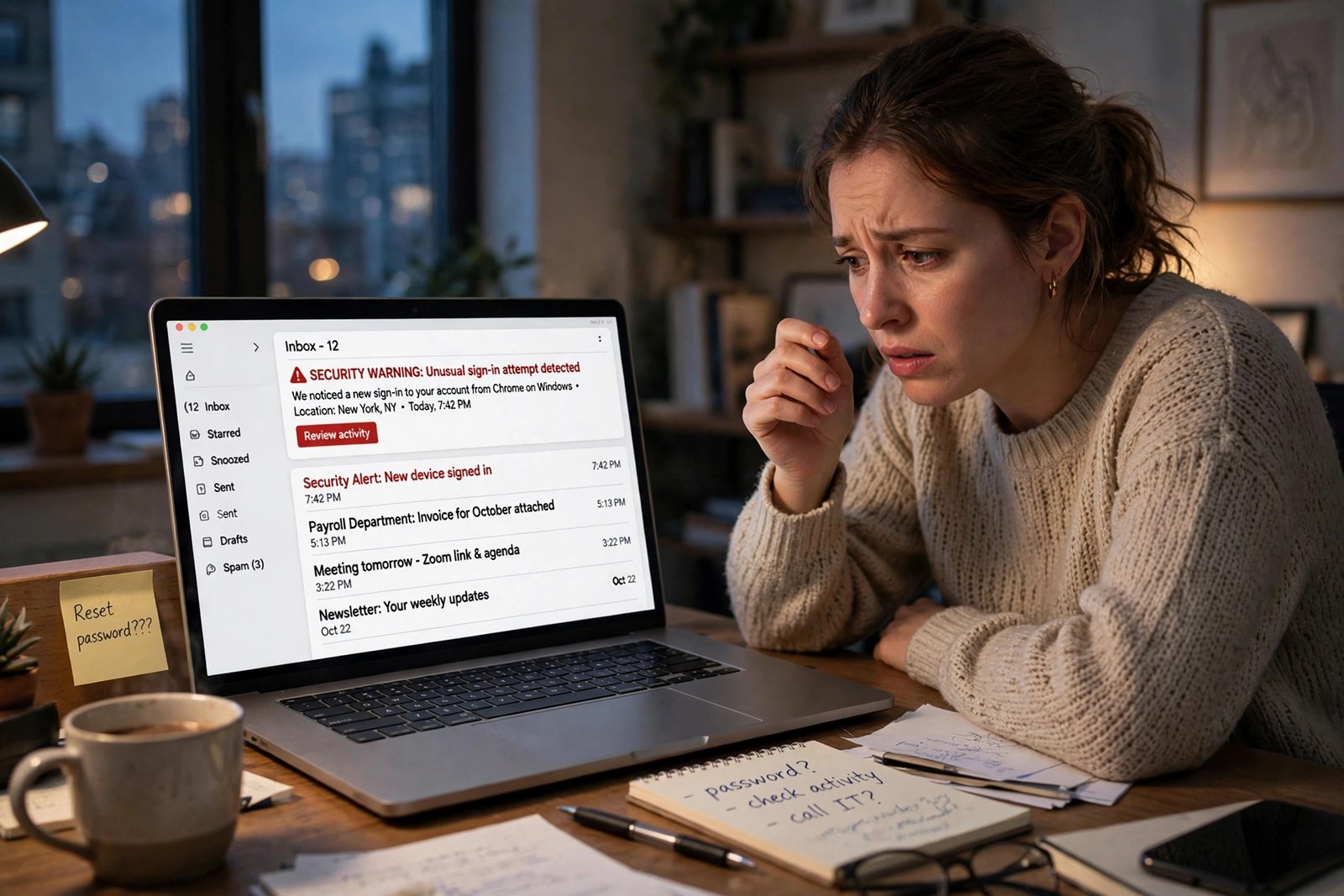
A friend texts you: “Did you really send me an invoice at 3 a.m.?” Or your password — the one you have used all year — suddenly “is incorrect.” That is why this guide exists: how to check if your email has been hacked, step by step, with the actual screens and settings — no panic, no scare tactics.
Work through it in order. One odd thing alone is usually a false alarm (covered honestly at the end). A pattern of them, starting together, is not. Our companion guide on how to check if your phone is hacked uses the same approach: real signs, exact checks, fixes in the right order.
Your email is the master key to your digital life: your bank, shopping accounts, social media and cloud photos all send password-reset links here, so whoever controls this inbox can reset almost every account you own. The smartest intruders never announce themselves; they read along quietly and wait. Their signs are what we are looking for.
9 Signs Your Email Has Been Hacked
No single sign proves a hack. What matters is the pattern — several, starting together, with no innocent explanation.
- Your password stops working. You are sure it is right, but the service says no — or a notice arrives that your password or recovery details changed.
- People tell you they got strange emails from you. Spam or scam links sent to your contacts at hours you were asleep.
- Your Sent folder contains emails you never wrote. Check Sent: unrecognized messages are hard evidence, and mail you did send going missing counts too — attackers delete their tracks.
- Emails show as read that you never opened. Someone may be reading along. Rule out your own phone mail app first, but alongside other signs, this matters.
- Important emails stop arriving. Bank alerts, invoices and reset codes stop arriving — a classic fingerprint of a filter deleting or redirecting the messages that would give the game away.
- Sign-in alerts from places you have never been. Your provider warns of a sign-in from an unfamiliar city, country or device when you were not using it. One alert can be a VPN quirk; a 3 a.m. sign-in from another continent is not.
- Settings have changed that you did not touch. A forwarding address you do not recognize, new filters or rules, a changed display name or signature. Attackers edit settings, not just passwords — settings are how they stay in.
- Password-reset emails arrive for your other accounts. Resets you never requested, for bank, shopping or social accounts.
- Your recovery details are no longer yours. The backup email or phone belongs to a stranger, or security alerts have stopped reaching you.
How to Check If Your Email Has Been Hacked in Gmail
Gmail offers the best self-service evidence of any provider, but its most useful screen is one most people have never opened:
Check recent activity first. In Gmail, at the bottom right below your last message, click Details beside “Last account activity.” The panel shows how the account was accessed — browser, mobile app, or a mail protocol like POP or IMAP — with the last 10 IP addresses and approximate locations, plus any other active session. An unrecognized location — or IMAP access, if you never set up a mail program — is a red flag. Note its “Sign out all other web sessions” button for later.
Then check devices and security events. At myaccount.google.com, open Security and check Recent security activity and Your devices; sign out anything unrecognized. Google’s Security Checkup (myaccount.google.com/security-checkup) covers the same ground.
Finally, check the settings an attacker would change. Click the gear icon → See all settings, and open three tabs. On Forwarding and POP/IMAP, forwarding should be disabled — any address there that is not yours is a serious finding. On Filters and Blocked Addresses, delete filters you did not create, especially any set to “Skip Inbox” or “Delete it.” On Accounts and Import, check “Send mail as” for unknown addresses and “Grant access to your account” for unapproved delegates — a delegate reads and sends your mail without your password.

How to Check If Your Email Has Been Hacked in Outlook and Hotmail
For Outlook.com, Hotmail and Live accounts, the evidence lives in your Microsoft account, not the mailbox itself.
Review your sign-in activity. Sign in at account.microsoft.com, open Security, then Sign-in activity. Microsoft shows roughly the last 30 days of sign-ins, with device, browser and location; flag any entry that was not you with “This wasn’t me.” Locations are approximate, so judge by time, device and place together.
Check rules and forwarding inside Outlook. Open Outlook.com, click the gear icon for Settings, then go to Mail → Rules. Delete any rule you did not create; attackers favor rules with blank or meaningless names that forward mail out, or move it to folders like RSS Feeds or Notes. Next, open Mail → Forwarding and make sure forwarding is off unless you enabled it, and check Automatic replies for one you did not write.
Check your security info. Back under Security, confirm every recovery email and phone number is yours — an unfamiliar one is the attacker’s way back in, even after a password change.
How to Check If Your Email Has Been Hacked in Yahoo Mail and Other Providers
Yahoo’s checks live on its Account security page, reached from your profile menu. Review recent activity and current sign-ins there; sign out any device you do not recognize. First, under External connections → App passwords, delete any app password you did not generate — app passwords survive a main-password change, a perfect back door. Second, open Settings → More Settings → Filters in Yahoo Mail — Yahoo’s own guidance names filters, plus the reply-to address, send-only addresses, display name and vacation response, as settings attackers change. Auto-forwarding (a paid Mail Plus feature, under Settings → More Settings → Mailboxes) should also be off unless you set it.
Whatever provider you use, run one more check: Have I Been Pwned. At haveibeenpwned.com, enter your address to check if my email is compromised in known data breaches, and what data was exposed. Read the result correctly: a listing does not mean someone is in your account now, only that your address — and possibly an old password — leaked at some point. If a breach included a password you reused anywhere, it is burned: change it everywhere.
On any other provider — iCloud Mail, Proton, an ISP mailbox — how to check if your email has been hacked comes down to the same four stops: recent sign-in activity, signed-in devices, forwarding settings, and filters or rules. For work or school accounts, loop in IT first.

The Check Most People Miss: Hidden Forwarding Rules and Filters
If you take one idea from this guide, take this one: changing your password does not remove a forwarding rule. The most common way a hack survives a password change is a setting left behind: a rule forwarding copies of your email to the attacker’s address, or a filter deleting reset and bank messages before you see them. It does nothing visible for days — until your bank emails a reset code, the rule copies it to the attacker, deletes the original, and your account is theirs again. So do not skip this check: forwarding off unless it is yours, every filter and rule accounted for, no delegates or app passwords you cannot name.
Email Hacked? What to Do Immediately, in This Order
Confirmed it? Here is the email hacked what to do sequence, in order — the early steps protect the later ones. If you are locked out completely, start with your provider’s recovery flow instead (Google’s account recovery page, Microsoft’s recovery form at account.live.com/acsr, or Yahoo’s Sign-in Helper) from a familiar device and location.
- Change the password from a clean device. Use a phone or computer you trust — not the device that may have caused this, in case malware on it captures the new password. If your main computer might be infected, scan it with a reputable antivirus first; Microsoft’s own recovery advice puts the malware check first for this reason. Make the new password long, unique, and used nowhere else.
- Sign out every other session. Use Gmail’s “Sign out all other web sessions” and Your devices panel, Microsoft’s sign-out options, or Yahoo’s current sign-ins list — a password change does not always end sessions already open.
- Turn on two-step verification. Prefer an authenticator app over text messages — app codes cannot be intercepted the way SMS codes can. This is what stops the attacker signing back in.
- Fix your recovery information and remove the leftovers. Confirm the backup email and phone are yours, remove any you do not recognize, then delete the attacker’s tools: forwarding, filters and rules, delegates, app passwords.
- Check the accounts this email protects. Start with your bank and anything financial, then shopping and social accounts: change those passwords and turn on their two-step verification. Assume any account resettable from that inbox was reached.
- Warn your contacts. Message people by text or social media, not only email: your account was compromised, strange messages from you were not yours, and they should not click links or send money in response.
Afterwards, glance at your sign-in activity and Sent folder every few days for a couple of weeks.
How to Secure a Hacked Email Account So It Stays Yours
Recovery gets your account back; this section keeps it — how to secure a hacked email for good.
Use a unique password for your email, above all accounts. If your email password doubles as your shopping password, a breach at a shop becomes a breach of your inbox. A password manager makes unique passwords effortless — we compared the best password manager for small business options, and every pick suits a personal inbox too.
Keep two-step verification on. Authenticator apps beat text codes; passkeys and hardware security keys, which Google and Microsoft both support, beat both. Remove third-party apps with account access that you no longer use — each one is another door. Keep your recovery email and phone current, too — lockout day is the wrong day to learn your backup number died with an old phone.
When It’s Not a Hack: False Alarms That Look Scary
Honesty cuts both ways. These four things frighten people every day, and most of the time they are not a hack at all.
- A password-reset email you did not request. Usually one of two boring things: someone with a similar address typed yours by mistake, or it is a phishing fake. Either way, do not click — open the service’s real site instead. Treat it as serious only if resets arrive for several accounts at once — sign 8 above.
- Spam that appears to come from your own address. An email’s “From” line is easy to forge — called spoofing — and spammers wear your address as a costume without touching your account. Check your Sent folder: if the message is not there, it did not come from your account.
- A sign-in alert after travel, a new phone, or a VPN. Alert locations are guessed from your IP address; a VPN puts you in another country entirely. Match the alert against what you were actually doing.
- Your address shows up on Have I Been Pwned. A listing means your details leaked in some company’s breach, possibly years ago — reason to change a reused password, not proof anyone is in your inbox today.
The rule of thumb: a false alarm explains itself with one of your own actions; a real hack leaves evidence only account access can reach — settings, Sent folder, sign-in history. Trust those three.
Frequently Asked Questions
How can I check if my email has been hacked without signing in?
Start with Have I Been Pwned: enter your address to see if it appears in known breaches. That covers leaks, not live access — for live access you must sign in and review the pages above. If friends report strange mail from you, begin recovery.
Will changing my password kick a hacker out of my email?
Not by itself. A password change does not remove forwarding rules, filters, delegates or app passwords. Proper email account hacked recovery is a sequence: new password from a clean device, sign out all sessions, two-step verification on, recovery info checked, settings swept clean.
Can someone read my email without knowing my password?
Yes — which is why the settings checks matter as much as the password. A forwarding rule can copy your mail onward, a delegate can open your mailbox with their own login, and an app password or stolen session can bypass your password entirely. All of them survive a password change until you remove them.
I’m locked out of my hacked email account. What now?
Use only your provider’s official recovery route: Google’s account recovery page, Microsoft’s recovery form at account.live.com/acsr, or Yahoo’s Sign-in Helper, filled in from a familiar device and location. Never pay a “recovery service” or a stranger on social media — real recovery is free, and only through the provider.
My email is on Have I Been Pwned. Does that mean I have been hacked?
No — your address was in a dataset that leaked from some company; your provider may never have been touched. The real risk is password reuse: if the leaked password guards your inbox or other accounts, change it everywhere.
The bottom line: learning how to check if your email has been hacked comes down to three places: sign-in activity, settings, and your Sent folder. Believe patterns over single oddities, and if you find a real intruder, evict them in the recovery order above instead of changing the password and hoping.


3 Comments on “How to Check If Your Email Has Been Hacked: 9 Signs and Exact Checks (2026)”
Comments are closed.