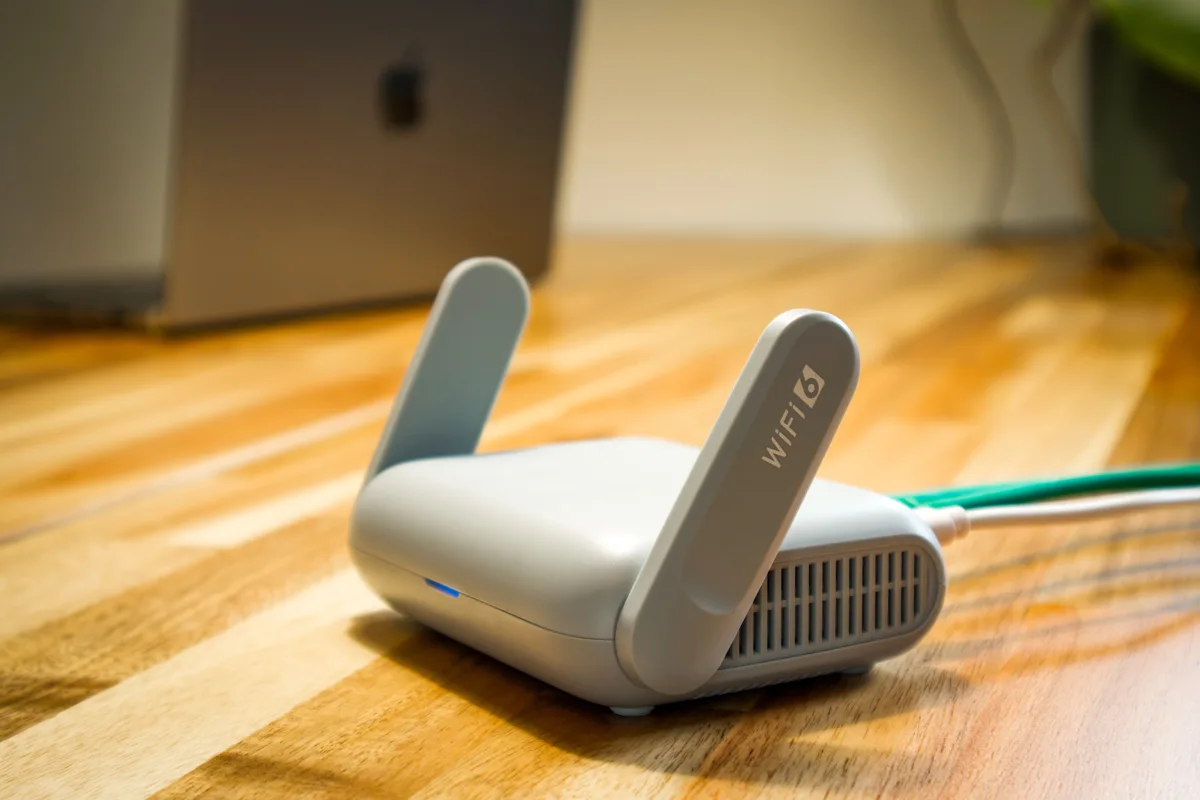
Your router connects everything in your home, from laptops and phones to cameras, TVs and smart plugs, yet most routers are still running on the settings they shipped with. Those defaults are public, predictable and easy to find. Learning how to secure your home Wi-Fi router takes one sitting in the settings, and this checklist walks you through the ten changes that matter, in order, using guidance from CISA and the FTC. No new hardware, no technical background and no guesswork: just change each setting, save it, and move to the next one. Most homes can finish in one sitting.

How to Secure Your Home Wi-Fi Router at a Glance
To secure a home router, change the default admin password and network name, set a long unique Wi-Fi passphrase, use WPA3 Personal or WPA2 with AES, update the firmware, turn off WPS, UPnP and remote management, and put guests and smart devices on separate networks away from your main devices.
Work down the table in order, because the early steps protect the later ones: a strong Wi-Fi password means little if the admin login that can change it is still the factory default.
| # | Setting | Change it to |
| 1 | Router admin password | Your own long, random, unique password |
| 2 | Network name (SSID) | A neutral name with no personal details or router model |
| 3 | Wi-Fi password | A passphrase of 5 to 7 unrelated words, at least 16 characters |
| 4 | Encryption | WPA3 Personal, or WPA2 with AES |
| 5 | Firmware | Latest version, with automatic updates on if offered |
| 6 | WPS | Off |
| 7 | UPnP | Off |
| 8 | Remote management | Off |
| 9 | Guest network | On, with its own password, for visitors |
| 10 | Smart device network | A separate network for IoT and smart home gadgets |
Menu names vary by brand and model, so treat locations in this guide as examples. Your manual or maker app shows the exact wording for your model.
Before You Start: Get Into Your Router Settings
Every change happens in your router settings page, sometimes called the admin page, or in the maker app.
CISA notes that a router usually has a sticker showing its default information, including the settings address, network name, key and account name. The FTC advises finding your router manufacturer name, then following that maker instructions for changing the admin and Wi-Fi passwords.
In practice, most people get in one of two ways:
- The maker app. Many newer routers and mesh systems are managed entirely from an app. If your router came with one, open it and look for Settings, Advanced or Toolbox.
- A web browser. Connect to your Wi-Fi, open a browser and type the address printed on the router sticker or in the manual. Sign in with the current admin details, which are also usually on that sticker.
Expect devices to disconnect briefly when you change the Wi-Fi name, password or encryption. Save new passwords in a password manager as you go.
Settings 1 and 2: Change the Default Admin Password and Network Name
1. Change the default router password
What it does: The admin password opens the settings page itself. Anyone who signs in as administrator can change every other setting in this guide, including your Wi-Fi password.
Why it matters: CISA warns that default router information may be publicly available for anyone to find. The FTC makes the same point from the other side: if someone logs into the admin side of your router, they can undo any other security steps you have taken.
The exact change: Change the admin username if allowed, and set the admin password to something long, random and unique, different from your Wi-Fi password. Avoid your name, address or router brand. Store it in one of the best password managers for families, and turn on passkey or two-step sign-in if offered. Our guide to passkeys and how to set them up explains that stronger sign-in.
2. Rename the default network name, carefully
What it does and why it matters: The SSID is the name devices see when they look for Wi-Fi. CISA says a default SSID can alert an attacker to known weaknesses linked to your router model, and a name with your surname or house number gives a stranger free information.
The exact change: Pick a neutral name that reveals nothing: no name, no address, no router brand or model. One honest note: you may see advice about hiding the name by turning off SSID broadcast. Security experts disagree on that trick, CISA does not list it as a protective step, and it is not a substitute for encryption. Renaming is worthwhile; hiding is not one of the ten settings here.
Settings 3 and 4: Set a Strong Wi-Fi Password and Modern Encryption

3. Set a strong Wi-Fi password
What it does: This is the password devices enter to join your Wi-Fi. It is separate from the admin password you set in step 1, and it should be a different password.
Why it matters: The FTC describes a unique, secure Wi-Fi password as what prevents strangers getting onto your network and closer to your devices.
The exact change: Follow the CISA recipe: a memorable passphrase of 5 to 7 unrelated words, at least 16 characters in total. Unrelated words are easier to type into a TV than a jumble of symbols, and far harder to guess than a pet name with a number. Do not reuse it elsewhere.
4. Use WPA3, or WPA2 with AES
What it does: Encryption scrambles the information sent over your network so other people cannot easily read it or steal it, in the FTC wording.
Why it matters: Older standards no longer hold up. CISA is blunt about which settings count as safe: WPA3 Personal and WPA2 AES are the only two forms it considers secure. An open network with no encryption, and older options such as WEP, WPA and WPA2 with TKIP, do not make the cut.
The exact change: In the wireless security settings, choose in this order:
- WPA3 Personal if it is offered and all your devices can connect. The FTC calls WPA3 the newer and best encryption available.
- WPA2/WPA3 mixed or transition mode if some devices are older. Newer devices use WPA3, older ones fall back to WPA2. For example, NETGEAR manuals note WPA3-only allows only WPA3 devices to join and point mixed households to the combined option. Labels vary by model.
- WPA2 Personal with AES if there is no WPA3 option at all. Avoid any option that mentions TKIP.
When an old smart device breaks on WPA3: this is common with older plugs, bulbs, printers and cameras. First, switch to mixed WPA2/WPA3 mode. If a device still refuses, move it onto the smart device network in setting 10, set to WPA2 with AES, and keep WPA3 on your main network. If your router offers only WPA or WEP after a firmware update, CISA and the FTC agree: ask your provider for an upgrade or consider a new router.
So for WPA2 vs WPA3, which should I use? WPA3 where you can, mixed mode where you must, WPA2-AES as the floor. Never WEP, WPA or TKIP.
Setting 5: Update the Firmware and Turn On Automatic Updates
What it does: Firmware is the software that runs the router itself. Updates fix flaws in that software, including security flaws that are already known.
Why it matters: CISA says routine updates protect against known vulnerabilities. An unpatched router keeps known holes open, however good your passwords are.
The exact change: Find the firmware or router update option, install anything waiting, and turn on automatic updates if offered. The FTC adds: register the router with the manufacturer to hear about new versions, and if your provider supplied it, ask whether it updates automatically. If not, check every few months.
Update before you judge your encryption options: an update sometimes adds WPA3, so look at setting 4 again afterwards.
Settings 6, 7 and 8: Turn Off WPS, UPnP and Remote Management
6. Disable WPS
What it does: Wi-Fi Protected Setup, or WPS, lets a device join your network by pressing a button on the router or entering a short PIN, instead of typing the Wi-Fi password.
Why it matters: CISA says this setting increases the likelihood that an attacker could gain unauthorised access to your Wi-Fi network. A shortcut that bypasses your strong passphrase undermines setting 3.
The exact change: Find WPS in the wireless settings and turn it off, including the PIN method if listed separately. Devices then join by entering the password, as they should. You only disable WPS and UPnP once; neither needs to come back on for daily use.
7. Disable UPnP
What it does: Universal Plug and Play lets devices on your network find each other and open connections through the router on their own, without asking you.
Why it matters: CISA warns that attackers can use UPnP to spread malware to devices in your network and control them remotely. The FTC also lists it among the features to turn off.
The exact change: Turn UPnP off. CISA allows one narrow exception: some devices need it on briefly while you first add them. If so, enable it, add the device, then disable it again. If a game later complains, forwarding the one port it needs is a smaller opening than leaving UPnP on for everything.
8. Disable remote management
What it does: Remote management, sometimes called WAN administration or web access from WAN, lets someone sign in to your router settings from the internet, from anywhere.
Why it matters: CISA explains that disabling it prevents attackers from making changes to your router without first connecting to your network, either wirelessly or by cable. In other words, it keeps the admin door inside your home, where your admin password protects it, instead of facing the whole internet.
The exact change: Turn it off unless you have a specific reason you fully understand. Change settings from inside your home network instead. The FTC general advice is the same: disable features you will not use, and remote management is its example. Labels vary, so look for Remote Management, Remote Access or Web Access from WAN.
Settings 9 and 10: Give Guests and Smart Devices Their Own Networks
This is the centrepiece of the checklist, and the step most households skip. One shared network means no boundaries inside it: a visitor phone, a cheap smart plug and your work laptop all share the same space. Separate networks fix that for free.
9. Set up a guest network for visitors
What it does: A guest network is a second Wi-Fi network, with its own name and password, that gives visitors internet access without giving them your main network.
Why it matters: The FTC gives two reasons: fewer people know your primary password, and if a guest unknowingly has malware on their phone or tablet, it will not reach your primary network and devices.
The exact change: Turn on the guest network, give it a recognisable name and, following CISA, a separate password that is long, random and unique. Share it freely with visitors. CISA says guest Wi-Fi is for anyone who does not routinely connect to your home Wi-Fi.

10. Put smart home devices on a separate IoT network
What it does: This takes the guest idea one step further. Smart bulbs, plugs, speakers, doorbells, cameras, TVs and appliances live on their own network, apart from the phones and computers that hold your files, photos and banking apps.
Why it matters: Smart devices are often the least protected things in the house: cheap, convenient and rarely updated. CISA reasoning is direct: connect smart and IoT devices to guest Wi-Fi if internet access is all they require, which prevents them discovering other devices on your home network, reaching router settings and introducing weaknesses.
The exact change: You have two workable setups, depending on your router:
- Simplest: put all smart devices on the guest network from setting 9, alongside visitors. This suits most homes and needs no extra hardware or settings.
- Cleaner: if your router offers a dedicated IoT network, or lets you create an additional network, use that for smart devices and keep the guest network purely for people. Some routers and mesh systems offer this as a named IoT option in the app; the label and availability vary by model.
Practical tips: set the smart network to WPA2 with AES if old gadgets struggle with WPA3, give it its own password, and move devices in groups, bulbs and plugs first, then cameras and speakers, testing each group as you go.
Keep only devices you trust on your main network: phones, laptops, tablets and computers. Everything that merely needs the internet belongs on the other side of the line. So should smart devices go on a guest network? Yes, whenever internet access is all they need. A set up a guest network for smart home devices approach limits the damage if any one cheap gadget is ever compromised.
Verify Your Work: Audit Who Is Already on Your Network
Changing settings protects you from now on. This check looks backwards, in case someone is already on your network.
Check the connected devices list. The FTC explains where: in the router web interface, look for connected devices, wireless clients or DHCP clients. Name every entry: phones, laptops, TV, printer, each smart device you just moved. This is the core of how to secure your home Wi-Fi router after the settings are done.
Act on anything you cannot name. If you find an unknown entry, change the Wi-Fi password, which forces every device to reconnect, then reconnect only your own. Our companion guide on how to tell if someone is using your Wi-Fi covers the warning signs and removal steps in detail.
Finish the FTC closing steps. Make sure the router firewall is on: the FTC notes most routers have built-in firewalls and advises checking, since a firewall adds protection against viruses, malware and hackers. Then log out as administrator rather than leaving the session open.
Disconnect what you no longer use. The FTC advises disconnecting older unused devices, because their security may be out of date. The same habit applies to your phone: see our guide on how to check if your phone is hacked.
Finally, CISA advises keeping the router in a secure physical location, because anyone with physical access could factory reset it and use the printed defaults to get back in.
When Settings Are Not Enough: Replacing an Old Router
If, after a firmware update, your router still offers only WEP, WPA or WPA2 with TKIP, with no WPA3 or WPA2-AES, CISA says to contact your provider to request an upgrade or consider a new router. The FTC agrees: update, check again, and if WPA2 or WPA3 are still unavailable, consider a new router.
The same applies if the maker no longer releases firmware updates for your model. Without updates, known flaws stay open, and settings cannot close a hole in the software itself. Replacing the router is then the security fix, not an upsell.
Frequently Asked Questions
How do I make my home Wi-Fi secure?
Work through the ten settings in this guide: change the default admin password and network name, set a long unique Wi-Fi passphrase, use WPA3 Personal or WPA2 with AES, update the firmware, turn off WPS, UPnP and remote management, and put guests and smart devices on separate networks. Then check the connected devices list and log out as administrator.
Should I use WPA2 or WPA3?
Use WPA3 Personal if your router offers it and all your devices can connect, because it is the newer and strongest option. If older devices cannot join, use the WPA2/WPA3 mixed mode so newer devices get WPA3 and older ones use WPA2. If there is no WPA3 at all, WPA2 with AES is acceptable. Avoid WEP, WPA and TKIP.
What is WPS and should I turn it off?
WPS, or Wi-Fi Protected Setup, lets a device join your network by pressing a button on the router or entering a short PIN instead of the Wi-Fi password. Yes, turn it off. CISA says it increases the likelihood of unauthorised access to your network, and the FTC lists it among the convenience features that weaken security.
How do I change my router admin password?
Open your router settings page in a browser or open the maker app, sign in with the current details from the router sticker or manual, and find the administration or system settings. Change the username if you can and set a long, random, unique password that is different from your Wi-Fi password. Exact menu names vary by brand and model, so check your manual for your model wording.
Should smart devices go on a guest network?
Yes, in most homes. CISA advises connecting smart home and IoT devices to guest Wi-Fi if internet access is the only thing they need, which stops them discovering your other devices or reaching your router settings. If your router offers a separate IoT network, use that instead and keep the guest network for visitors.


